HTML to PDF Print CSS: Fixing Breaks, Headers, Margins
September 18, 2026
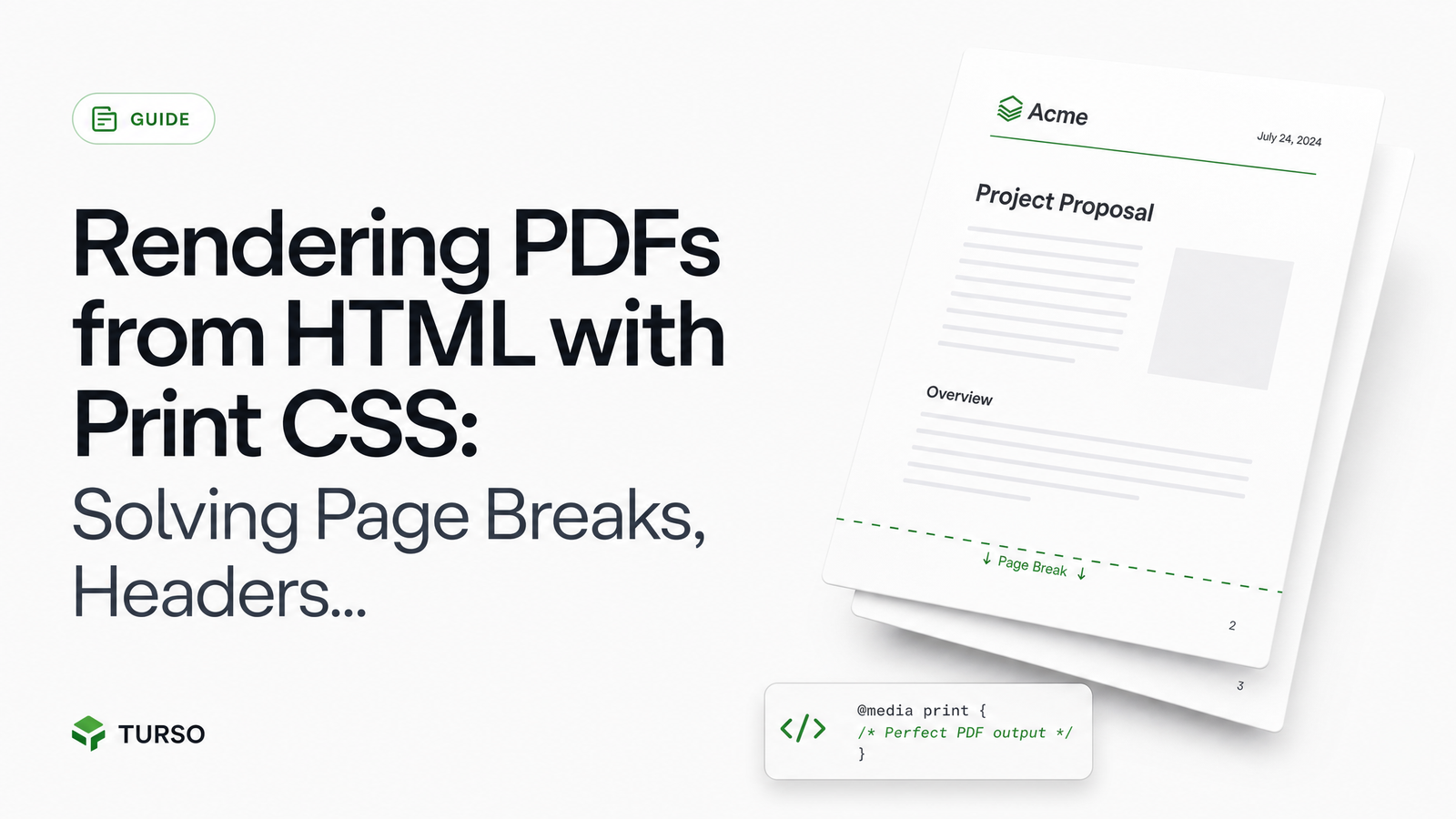
Generating a PDF from HTML looks trivial until an invoice line item gets sliced across two pages, or a custom footer starts drawing on top of body text. Most html to pdf print CSS advice either dumps the full CSS Paged Media spec or hands you one Puppeteer snippet without explaining why it breaks in production. This piece is organized around the three failures developers actually hit — broken mid-element splits, overlapping headers, and wrong margins — with the minimal fix for each.
Why HTML-to-PDF Rendering Breaks Print Assumptions
Screen CSS and print CSS are different rendering contexts, and it's easy to forget that until a headless browser's PDF engine exposes the gap. When you render HTML to PDF via Chromium, the page is sliced into fixed-height sheets, and every element has to land on one side of a break or the other. @media print rules apply, but a headless browser PDF export also layers on its own print-to-PDF pipeline, with parameters for headers, footers, and margins that live outside your page's HTML entirely.
That's why layouts that look fine on screen — even in a browser's print preview — come out wrong when rendered programmatically through Puppeteer's page.pdf(), Playwright's PDF generation, or a hosted rendering API. Page breaks, repeating headers, and margin math all need deliberate handling; none of it is automatic just because you wrote valid CSS.
Controlling Page Breaks: break-inside, break-before, break-after
CSS Paged Media originally defined page-break-inside, page-break-before, and page-break-after. The CSS Fragmentation Module Level 4 superseded them with break-inside, break-before, and break-after, which also work across multi-column and paginated layouts, not just print. Browsers still alias the legacy properties to the new ones, but write the modern versions going forward — MDN's page-break-inside reference confirms the legacy property is deprecated in favor of break-inside.
For keeping structural elements intact, this is the CSS that matters:
.invoice-row, .card, tr {
  break-inside: avoid;
}

section.chapter {
  break-before: page;
}

.section-end {
  break-after: page;
}
break-inside: avoid tells Chromium not to split that box across a page boundary if it can help it. break-before: page and break-after: page force a hard page break — useful for starting a new invoice, chapter, or report section cleanly. CSS-Tricks has a solid rundown of break-before values if you need left/right/recto/verso behavior for double-sided printing.
Common Page-Break Failures and Fixes
break-inside: avoid seems ignored. This is the single most common page-break-css-pdf complaint, and it's almost always a fragmentation-context issue, not a bug. Chromium can't honor break-inside: avoid on an element taller than one full page — there's nowhere to put it. It also won't reliably honor it inside display: flex or display: grid containers, since those items don't participate in fragmentation the way block boxes do. The fix: apply break-inside: avoid to block-level rows (tr, div, li) rather than their flex/grid wrappers, and make sure the element's natural height fits within your page height minus margins.
Orphaned headings. A heading stranded alone at the bottom of a page, with its content pushed to the next, is an orphans/widows problem. Set orphans: 3; widows: 3; on body text, and pair headings with break-after: avoid so they stay glued to the paragraph that follows.
Empty trailing pages. These usually come from a forced break-before: page on the last section, or a footer/margin height that pushes overflow content onto a phantom page. Check the last element in your document for a stray break rule, and confirm your bottom margin plus footer height doesn't exceed the printable page height.
Headers and Footers: Why They're Separate From the Page
This trips up almost everyone building an html to pdf api integration: headers and footers rendered via headerTemplate/footerTemplate (Puppeteer/Playwright) or an equivalent API parameter render in an isolated context, separate from your page's HTML and CSS. They don't inherit your stylesheet, they don't know about your @page rules, and they overlay on every page independently of your body content.
To add page numbers and totals, use the special classes Chromium injects into header/footer templates:
Page of
Browserless's Puppeteer PDF walkthrough shows this pattern in full working context, including displayHeaderFooter: true and template setup.
Setting Margins So Headers/Footers Don't Collide With Content
Header/footer overlap happens because Chromium prints the header/footer template into the margin area you define — if that margin is smaller than the template's actual height, it collides with body text. The fix: measure your header/footer template's rendered height (padding included), then set margin-top/margin-bottom in the PDF options to at least that height, plus a small buffer.
await page.pdf({
  margin: { top: '80px', bottom: '60px', left: '40px', right: '40px' },
  displayHeaderFooter: true,
  headerTemplate: `Invoice #{{id}}`,
  footerTemplate: `Page  of `
});
If your header template is 50px tall with 15px of internal padding, a 60–80px top margin gives it breathing room without eating into body content.
Print-Only CSS: What to Hide and Show
@media print still governs your body HTML and CSS — it's just scoped differently from the header/footer parameters above. Use it to hide navigation, ads, buttons, and any interactive UI that means nothing on paper:
@media print {
  nav, .site-header, button, .no-print { display: none; }
  body { color: #000; font-size: 12pt; }
}

@page {
  size: A4;
  margin: 20mm;
}
The @page at-rule sets sheet size and default margins for the document flow itself — distinct from the header/footer margin parameters your rendering API exposes, which override or coexist with @page margins depending on the engine. Keep colors print-safe (dark text, no low-contrast backgrounds) and drop decorative fonts that don't embed cleanly.
Rendering It Reliably via a Headless Browser API
Every pattern above — break rules, header/footer templates, margin math, print stylesheets — assumes you're running Chromium yourself, patching it, and keeping fonts and dependencies in sync. A headless browser API handles that layer so you send HTML/CSS, header/footer templates, and margin settings, and get back a PDF that matches what you tested locally. If you're weighing self-hosting Chromium against a managed option, Headless Chrome vs Managed Browser API: The Real Cost breaks down the tradeoffs in infrastructure and maintenance time.
Browsevra's PDF endpoint accepts the same CSS patterns covered here — break-inside, headerTemplate/footerTemplate-style parameters, and explicit margins — so you can move straight from local testing to production without rewriting your print logic.
Frequently Asked Questions
Why does page-break-inside: avoid not work in my PDF?
It usually fails because the element is taller than a full page, or it sits inside a flex or grid container, neither of which reliably respects fragmentation rules in Chromium. Move the property to a block-level row (tr, div, li) and confirm the element's height fits within one page minus your margins.
How do I add page numbers to a PDF generated from HTML?
Use the headerTemplate or footerTemplate parameter with the special pageNumber and totalPages classes Chromium injects automatically, such as of . These templates render independently of your page HTML, so the classes only work inside the header/footer template, not in the body.
Why does my header overlap the page content in the PDF?
The margin you set for the PDF is smaller than the actual rendered height of your header or footer template. Measure the template's height including padding, then set margin-top/margin-bottom to at least that value plus a small buffer.
What's the difference between page-break-before and break-before?
page-break-before is the legacy property from the original CSS Paged Media spec; break-before is the modern equivalent defined in the CSS Fragmentation Module Level 4 and also applies to multi-column layouts. Browsers alias the legacy property to the new one, but new code should use break-before.
Can I use @page CSS rules with a headless browser API?
Yes — @page size and margin rules apply to the document's own layout and work alongside the API's own margin/header/footer parameters, though the API-level margin settings typically take precedence when both are present. Test both together, since some engines let API parameters override @page margins outright.
How do I stop a table row from splitting across two PDF pages?
Apply break-inside: avoid directly to the tr element rather than the whole table, since Chromium fragments row by row and a rule on the table alone won't stop individual rows from splitting. If rows are still splitting, check that no ancestor uses display: flex or display: grid, which can suppress fragmentation behavior entirely.
Ready to stop babysitting Chromium for header math and break rules? Send your HTML and these same CSS patterns to Browsevra's PDF endpoint — check the docs for the full parameter reference, and pricing for usage tiers, or head to browsevra to get started.