Scraping Canvas Rendered Content: A Developer's Playbook
September 24, 2026
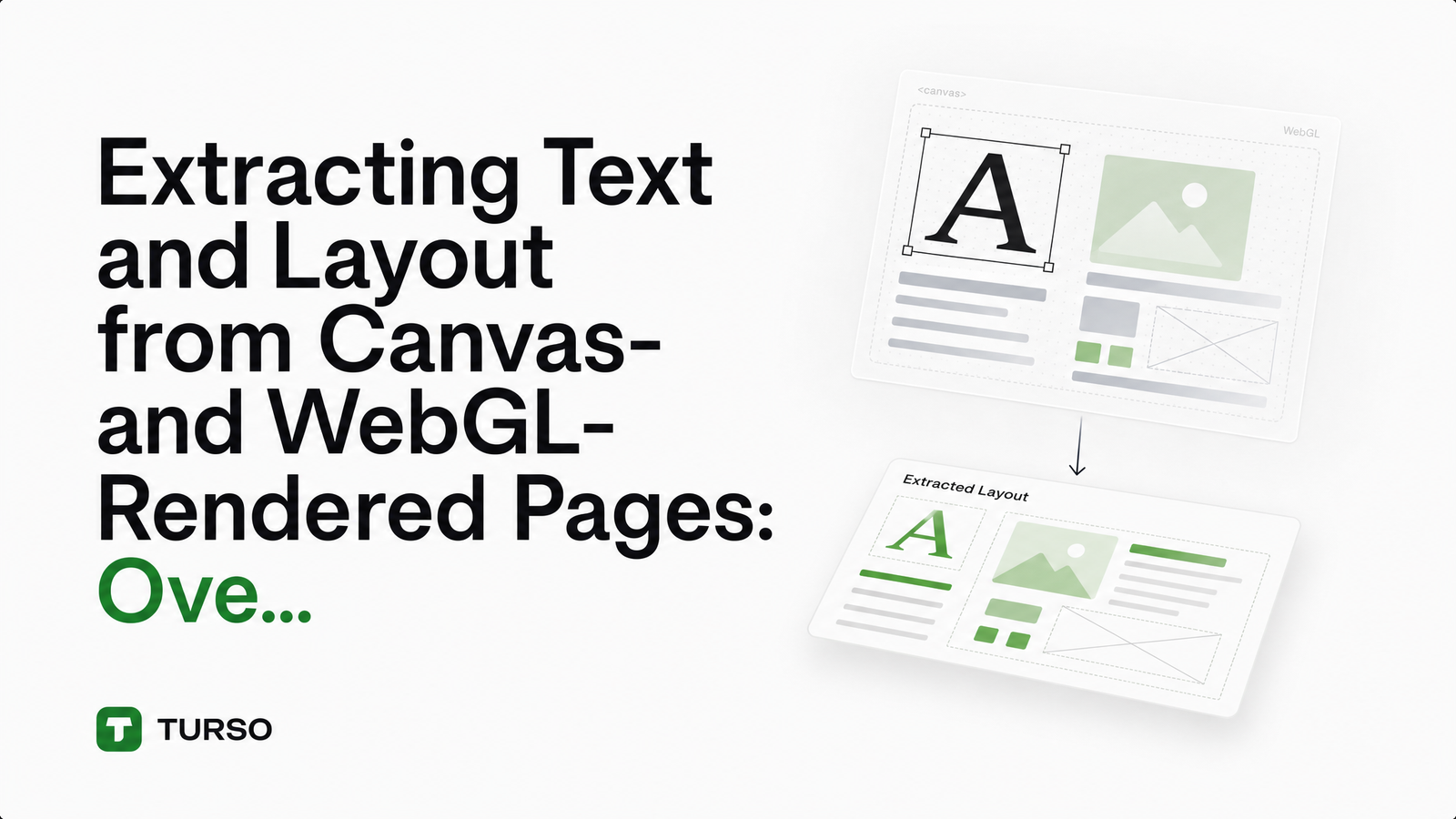
Open dev tools on a canvas-rendered dashboard, run document.querySelector('.chart-label'), and you get null. Not because the selector is wrong — because there's nothing to select. Scraping canvas rendered content requires a completely different mental model than scraping a normal DOM, and most "web scraping" tutorials never mention it because they assume a document tree exists in the first place.
Below are three concrete techniques for recovering text and layout from canvas and WebGL content, ordered by effort and fidelity, plus a framework for picking the right one before defaulting to the most expensive option.
Why Canvas and WebGL Break Standard Scraping
A element is a single DOM node — a rectangle of pixels with no internal structure. When a chart library calls fillText("Revenue", 120, 40), the browser rasterizes that string directly onto the bitmap. No is created, no text node exists, nothing innerText can walk. toDataURL() serializes the entire canvas surface to a Base64-encoded image, which is precisely why canvas content is opaque to conventional tooling — you're looking at compressed pixels, not markup (User Tracking in the Post-cookie Era).
WebGL pushes this further. Instead of a 2D drawing API, WebGL content is the output of shader programs running on the GPU — vertex and fragment shaders compute colors per-pixel with no concept of "text" or "element" at all. The distinction between the canvas 2D context (fillText, getImageData) and the WebGL rendering context is well documented in academic work on browser fingerprinting, since both APIs expose the same core problem: rich visual output with zero accessible structure (Web Tracking: Mechanisms, Implications, and Defenses).
This is why canvas element web scraping fails silently rather than throwing an error. Rendered-HTML scraping, headless browser page.content() calls, even full JavaScript execution — all return a technically complete page with a functionally empty content area. You're dealing with pixel-only content, and pixels need a different extraction strategy entirely. If your actual issue is that content loads late via client-side rendering rather than canvas, rule out that simpler cause first — see why JavaScript-heavy scraping fails and how to fix it before assuming you need canvas-specific tooling.
Three Ways to Recover Text and Layout
Once you've confirmed the content is canvas- or WebGL-drawn, you have three viable paths. Each trades setup complexity for fidelity, and the right one depends on how the target site renders its content — a chart library behaves nothing like a CanvasKit-compiled Flutter app.
Hook the Drawing Calls Before They Render
The highest-fidelity option is to intercept the drawing calls themselves. Before the target page loads, inject a script that monkey-patches CanvasRenderingContext2D.prototype.fillText and strokeText, logging each string along with its x/y coordinates as it's drawn. This is canvas fillText interception: you capture the input to the rasterizer, not its output.
const original = CanvasRenderingContext2D.prototype.fillText;
CanvasRenderingContext2D.prototype.fillText = function(text, x, y, ...rest) {
  window.__capturedText.push({ text, x, y });
  return original.call(this, text, x, y, ...rest);
};
Logging coordinates alongside content recovers both text and precise layout — enough to reconstruct a table or chart legend without touching image data. This works well for chart libraries (Chart.js, D3-on-canvas) and dashboards that call fillText directly, but it doesn't help against WebGL shader output, since there's no equivalent text-drawing call to intercept. It also requires script injection before the page's own scripts run, meaning you need control over navigation timing, not just post-load access.
Read the Accessibility Tree Instead of the Pixels
Many canvas- and WebGL-based frameworks maintain a parallel accessibility tree so screen readers can still describe the content — Flutter Web's CanvasKit renderer, several design tools, and some canvas-based games all do this. Chrome accessibility tree scraping means querying this structure directly via the Chrome DevTools Protocol's Accessibility domain, pulling structured text nodes and bounding boxes without decoding a single pixel.
This is worth checking early: it's often cheaper than draw-call hooking and works even on WebGL content, where fillText interception is a dead end. For Flutter Web CanvasKit scraping specifically, the accessibility tree is frequently the only non-visual way in, since CanvasKit renders everything to a single WebGL surface with no intermediate DOM. The catch: not every canvas app builds this tree, and coverage can be partial — a chart might expose a title and axis labels but omit individual data points.
Fall Back to OCR on a High-Fidelity Screenshot
When there's no accessible text-drawing API to hook and no accessibility tree to query — true for most WebGL-rendered dashboards and heavily obfuscated canvas apps — OCR is the universal fallback. Headless browser OCR scraping works by taking a full-page or region screenshot at a high resolution and device scale factor, then running it through an OCR engine that returns bounding-box output alongside recognized text, letting you reconstruct approximate layout.
The tradeoffs are real: a screenshot-OCR pipeline is slower than direct interception, sensitive to font rendering and anti-aliasing, and prone to misreads on small or stylized text. It also can't recover data that isn't visually rendered at capture time — anything scrolled off-screen or drawn only on hover is invisible to it. But it works on virtually anything with legible text, making it the right tool when the first two techniques aren't options.
Which Technique Fits Your Target Site?
Choosing a canvas scraping method comes down to a short inspection sequence, worth doing before writing any extraction code:
- Check if the canvas calls
fillText/strokeTextdirectly. Open the Sources panel, search the bundled JS for these calls, or set a breakpoint inside a patched prototype method. If they're there, draw-call hooking gives you the best fidelity for the least runtime cost. - Inspect the accessibility tree in dev tools. Open the Accessibility pane and see if labeled nodes appear over the canvas region. If so, CDP-level access is cheaper and more reliable than OCR.
- Reach for OCR only when neither exists. This is the WebGL-vs-canvas fork in practice: canvas apps built on standard chart libraries are usually hookable or exposed via accessibility; CanvasKit and raw WebGL apps with no accessibility layer almost always require OCR.
Skipping straight to OCR because it "always works" is the most common mistake — it costs more compute per page and returns lower-fidelity layout than the other two methods when they're actually available.
Building the Pipeline with a Headless Browser API
Each of these techniques maps directly onto capabilities a headless browser API needs to expose. Draw-call hooking requires injecting instrumentation scripts before navigation completes, so your patched fillText is in place before the target's own scripts run. Accessibility-tree reading requires CDP-level access to the Accessibility domain rather than just rendered HTML. OCR requires requesting full-page screenshots at a controlled scale factor high enough for reliable text recognition.
This is precisely the orchestration layer Browsevra handles: pre-navigation script injection, protocol-level browser control, and high-fidelity screenshot capture, all through one API rather than a self-managed Puppeteer or Playwright cluster. Some sites hand you a simpler problem than canvas — the chart is populated from an XHR response you can intercept directly, sidestepping pixel extraction entirely; see network request interception in headless browsers for that approach.
Frequently Asked Questions
Can you scrape text that's drawn on an HTML5 canvas?
Yes, but not with standard DOM selectors — canvas text is rasterized into pixels, not stored as text nodes. Recover it either by intercepting the fillText/strokeText calls before they render, reading a parallel accessibility tree if the framework provides one, or running OCR on a screenshot as a last resort.
Why does document.querySelector return nothing on canvas-based sites?
Because a element has no internal DOM structure — it's a single node containing a bitmap. Content drawn via fillText() or WebGL shaders becomes pixels immediately, so there are no child elements, attributes, or text nodes for querySelector or innerText to find.
Is OCR the only way to extract data from WebGL-rendered apps?
No — check for an accessibility tree first, since some WebGL frameworks like Flutter Web's CanvasKit renderer expose one for screen readers. OCR becomes necessary only when there's no accessibility layer and no interceptable draw-call API, common with raw WebGL and heavily obfuscated apps.
Does Chrome's accessibility tree work for canvas and WebGL content?
It can, if the framework rendering the canvas explicitly builds one for screen-reader support. Flutter Web, some design tools, and certain canvas-based games maintain this structure, queryable via the Chrome DevTools Protocol's Accessibility domain — but coverage varies and isn't guaranteed for every canvas app.
How do you extract chart data from Chart.js or D3 canvas renders?
The most reliable method is hooking CanvasRenderingContext2D.prototype.fillText before the page renders, since both libraries typically draw labels and values with direct fillText calls. This captures the text and its x/y coordinates simultaneously, letting you reconstruct axis labels, legends, and data points without touching pixels.
Can a headless browser API automate this canvas extraction process?
Yes — a headless browser API can inject instrumentation scripts pre-navigation for draw-call hooking, expose CDP access for accessibility-tree queries, and return high-DPI screenshots for OCR pipelines. This lets developers implement any of the three techniques without managing their own browser infrastructure.
Whichever technique fits your target site, the execution layer is the same: a browser that can inject scripts before load, expose the accessibility tree over CDP, or return high-fidelity screenshots on demand. Check the Browsevra docs for implementation details on each, or see pricing to test the pipeline at scale.